WoW Retail-Config
Here, I will explain all in-game configurations (except UI or graphics, that are in another page of this website) with their related internal console variables Cvars (if apply and makes sense), not all settings are fully customizable through the UI (some of them only Cvar). I will focus on those most relevant to my gameplay style. The topics will be organized into the following categories:
- Camera
- Spell Target Management
- Combat, Alerts, movement
- Action bars, talent management, and keybinding
- Frames and chat
TL;DR
Here will show the full config that, just copy config based on images, have in mind some configs the only way to set is via Cvars using commands
TODO
Commands Camera
Set max camera distance zoom to highest value
/console cameraDistanceMaxZoomFactor 2.6
Reduce zooming collides for small objects
/console cameraIndirectVisibility 0
/console cameraIndirectVisibility 1
/console cameraIndirectOffset 10
Spell Target Management
For my game style i use Enable Mouseover with modifier key None (default execution without modifier) and for each the spell with position behavior (like Death and decay of Death knight) create this macro (save on specific macros of character)
#showtooltip
/stopspelltarget
/cast [mod:alt, @player] [mod:shift, @cursor] [] SPELL_NAME
With this macro while you are pressing alt and use the macro the spell will use the position point your current position, with shift key will executed on mouse position (without preview) if don’t press nothing will have the normal behavior (show the are effect based on cursor position).
For the others spell target management i use:
- Selft cast set Auto and Key Press and set modifier key Alt.
- Focus Cast Key with None but if you really want to use the modifier key for focus target could use Shift
Camera
In WoW Retail, the camera has different configurations that can adapt to various gameplay styles. In this case, I will explain in detail how I use the camera and share some general configuration tips based on my experience.
In the interface section under Options → Gameplay → Controls, there are settings related to camera behavior. The best configuration depends on your playstyle whether you prefer using the keyboard (more buttons) or the mouse (more clicks). In this guide, I will focus on a setup that emphasizes keyboard usage.
TIP: Holding left click allow to move your camera but once your character move the camera will move according to Camera Following Style config
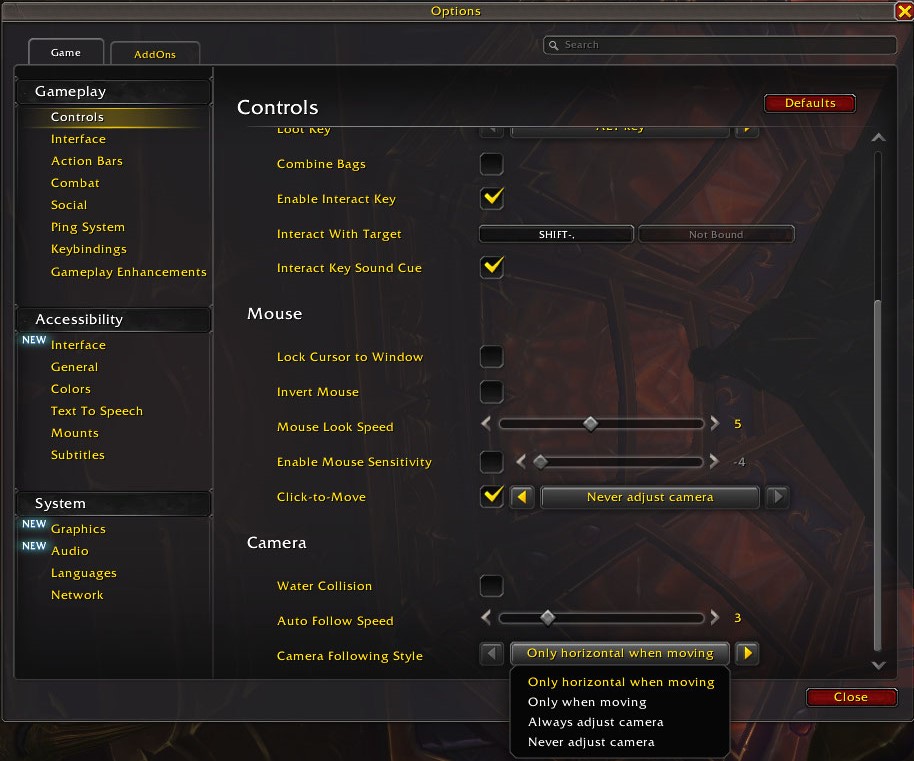
Water collision
This value allow when you enter into water the camera automatically will below the water and if go at surface or above the water the camera as well will go above the water. This config in my opinion is annoying i recommend Disabled
Command to check
/run local v=GetCVar("cameraWaterCollision") print("Camera Water Collision:",v,v=="1"and"Enabled"or"Disabled")
Command to Set value
/console cameraWaterCollision 0
Value type Boolean value, Valid values 0 (False, marked), 1 (True, unmarked)
- 0: Disabled
- 1: Enabled
Auto Follow Speed (Camera)
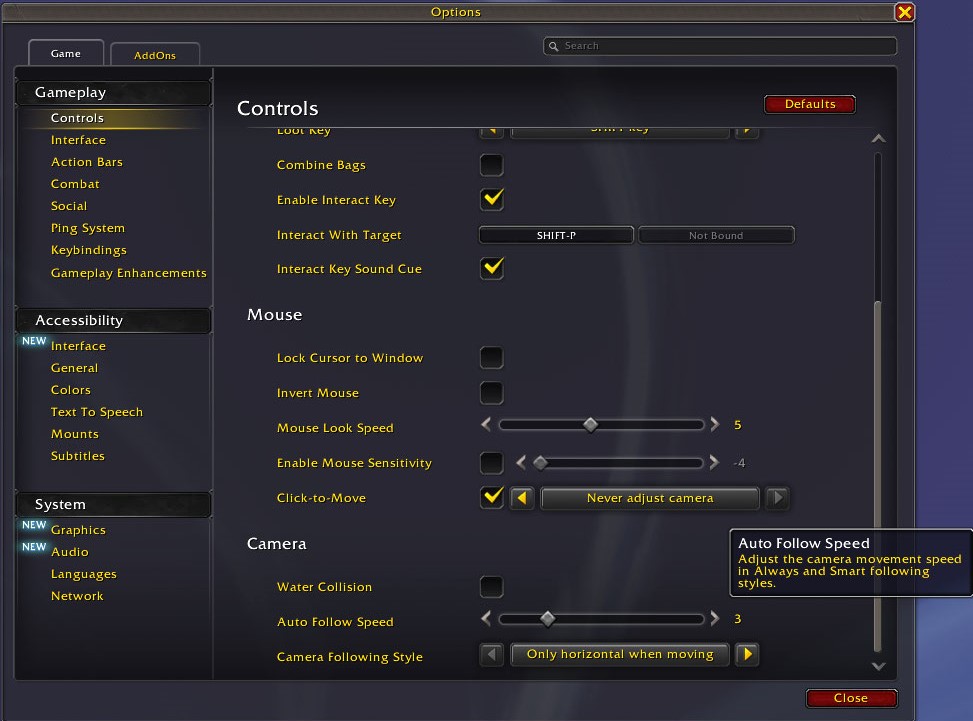
Speed when the “auto Follow” is executed (when your character move under the conditions of Camera Following Style), valid range 1.0 - 10.0. Depending your following style is the best value for example in my case 3.0 works for me.
Camera Following Style
When your character moves using the keyboard (if you move using both mouse clicks, the camera will face the direction of the mouse), the camera can automatically “follow” the direction your character is facing. By default, it adjusts only when you move both horizontally and vertically. You can configure this based on your game style.
For Click-to-Move (right-click to set a destination, and the character moves in a straight line toward it), there’s a separate configuration for camera-following behavior, but the available options are the same:
- Only horizontal when moving: This is my preferred setup. It keeps the camera in a top-down view and only adjusts when your character rotates. I find this especially helpful for dodging multiple AOE attacks.
- Only when moving: This is the default option. The camera adjusts only when your character is actively moving.
- Always adjust camera: The camera continuously follows your character’s facing direction, even when standing still.
- Never adjust camera: The camera remains fixed and does not follow your character’s movement or rotation (you must to move the camera using left click).
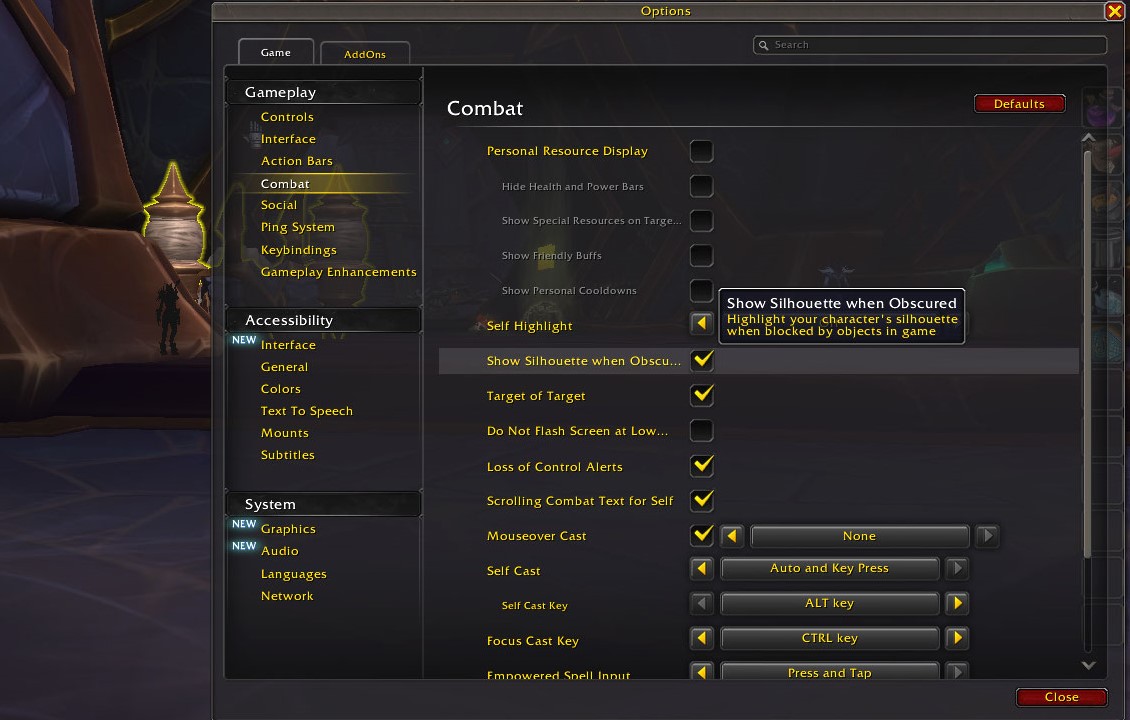
Show Silhouette when obscured
This option enables a silhouette of your character to appear when they are obscured by objects in the game environment. It’s especially useful in areas with scattered obstacles, helping you maintain visibility of your character. To activate this feature, go to: Options → Gameplay → Combat, and enable the setting.
Camera Max distance
The camera max distance is intended to be “static” and not user-adjustable. However, it’s still possible to modify it by directly changing the CVar using the following command:
/console cameraDistanceMaxZoomFactor 2.6
The default value is 1.9, and the maximum allowed value is 2.6. Personally, I prefer using the max value for a wider view. To check your current setting, run this command:
/dump GetCVar("cameraDistanceMaxZoomFactor")
Camera reduce zooming at collides with small objects
Normally, when the camera collides with objects in the environment, it zooms in to avoid obscuring the player this is expected behavior. However, small objects like trees, rocks, banners, lamps, and similar items can also trigger this zoom effect, which may be unnecessary and annoying (for example forest could have multiple trees and this could be zoom in and out constantly). With the following configuration, it’s possible to reduce this behavior specifically for “small” objects.
/console cameraIndirectVisibility 0
/console cameraIndirectVisibility 1
/console cameraIndirectOffset 10
On this wowhead article you can see the behavior with and without that config
Spell Target Management
A spell in World of Warcraft is a special ability used to perform actions such as dealing damage, healing, applying effects, or interacting with the world. Spells can have specific targets like an ally, an enemy, yourself, or a location or they may simply affect the area around you without requiring a target. The targets could be managed by:
- Manual
- Self Cast
- Focus
- Mouseover
Manual target
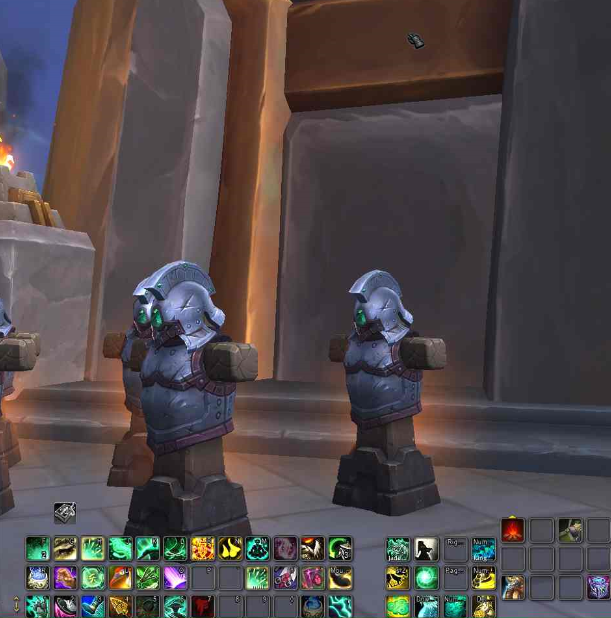
Spells that requires a target they determines the target according to your configuration for example if your spell is for allies only (not castable on yourself) and if you have invalid target (enemy or ally that can’t receive spell) or don’t have a target your cursor will have background color gray or blue if you have the cursor over valid target waiting to click to valid target (manual target behavior), if you select a target in that condition and still invalid you will see the error Invalid target
Here an example about manual target.
No valid target
Valid target
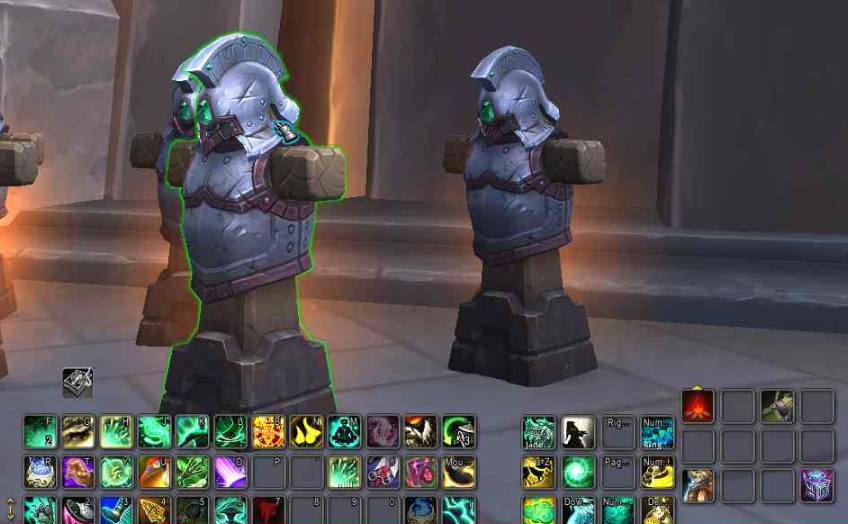
Not all allies are valid targets. Some NPCs, pets, or players affected by certain conditions (e.g. spells, phases, raid/group status) may dynamically become invalid.
Self Cast
Some spells require either a target or a position to be cast could be affected by Self Cast configuration, which can be found under:
Options → Gameplay → Combat
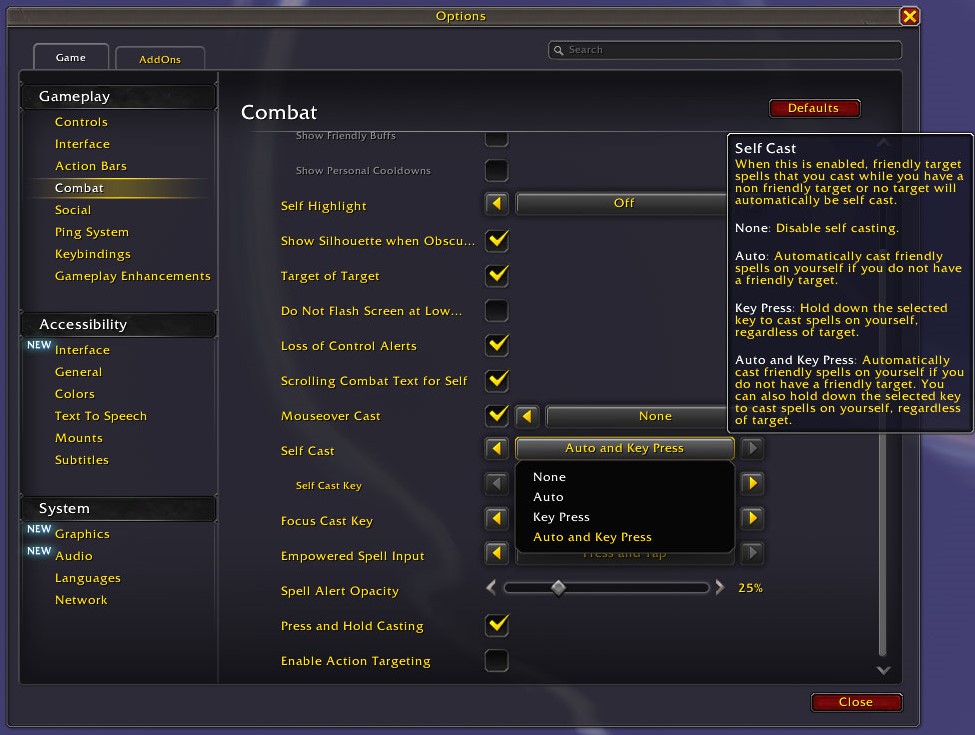
When Self Cast set to Auto or Auto and Key Press for spells that can be cast on allies or yourself, the behavior will be:
- Cast on your target: If your current target is a valid target of the spell.
- Cast on yourself: If your target is invalid or you don’t have a target, or if you have auto and key press and are pressing the configured modifier key.
- Select target manually (Cursor blue or gray): If your spell is for allies only if you have invalid target (enemy or ally that can’t receive spell) will follow the behavior of Manual target
If your target is valid but out of range or not in line of sight (LOS), you’ll receive an error instead of the spell being cast on yourself EXCEPT if the target is in another map or phase, in which case the spell will self-cast.
- Spells that can only be cast on enemies: The Self Cast setting does not apply (because usually enemy spells can’t be casted on you). If your target is invalid or missing, you will see errors like
Invalid targetorThere is nothing to attack. - For Spell that can be used on enemies and allies (any of them at the same time): if your target is not valid for be attack and also not a valid ally, the spell will be cast on yourself (if self cast activated, otherwise will see your cursor blue in order to manually select target). If your target is a valid enemy, the spell will be cast in attack mode.
- For Spells with position behavior (specific area instead of target): if you setup Self cast with Key Press or Auto and Key Press and you press the key (the configured one CTRL, ALT, or SHIFT) then the spell the position will be the your current position (without preview).
Macro
To setup yourself how target via macro use the special var @player, for example
/cast [@player] SPELL_NAME
Where SPELL_NAME is the spell to cast on yourself, if the spell is position behavior (like Death and decay of Death knight) that will cast on player position.
More info about macros check here ToDo
Target from Focus
Focus is essentially an additional target that you can set using the /focus command or by selecting the focus option when right-clicking on a target. This focus target can be used as the source for spells you cast. In the interface under:
Options → Gameplay → Combat → Focus Cast Key
You can assign a modifier key (CTRL, ALT, or SHIFT) that allow if you are holding the assigned mod key and press the spell from the action bar using keybinding or click on it will use how target focus (even if you already have a target). Also exist the option None that will do once the focus exist all spells without press something else will use focus how target, if focus does not exist the target will the other conditions (target, self, manually, etc)
If you use the none option you should use mouse over with keypress or the way to dynamically remove the focus. but in general i don’t recommend use None on Focus target
The common use of focus are about the “important” target to track for a particular moment , like important enemy, ally to constant monitoring (one common case focus tank in parties)
This configuration applies to regular spells on your action bar. Spells used within macros ignore this setting.
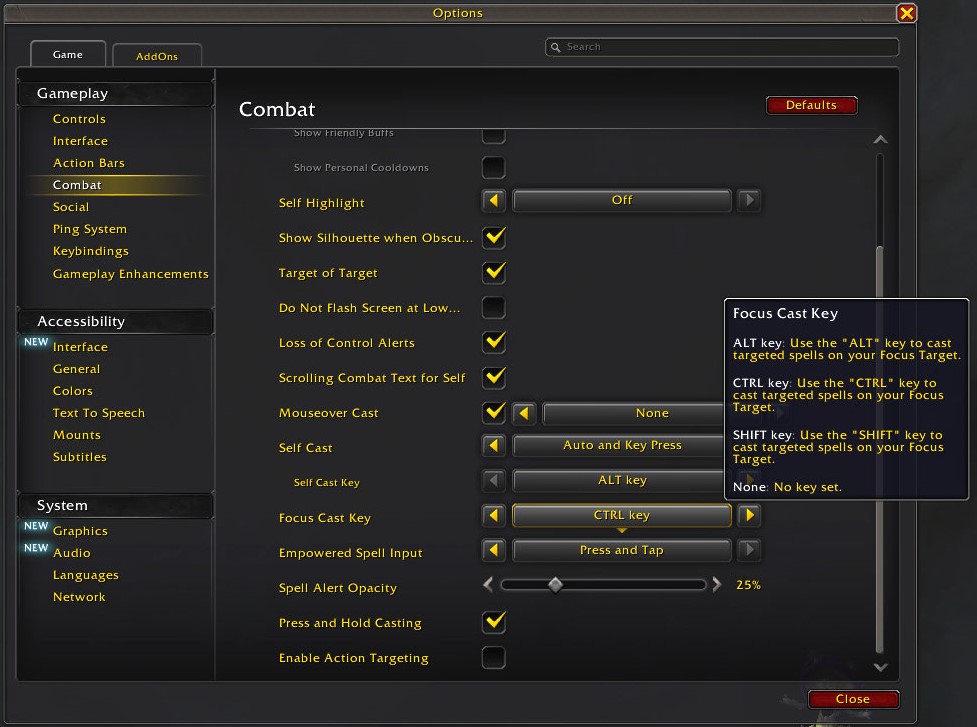
This configuration simplifies the cast on focus using modifier without a macro for every spell
Macro
To setup focus how target via macro use the special var @focus, for example
/cast [@focus] SPELL_NAME
Where SPELL_NAME is the spell to cast on your focus.
spells that works with position does not work with this var.
You can also setup or clear your focus using mouseover target with the next macro
/clearfocus
/focus [@mouseover,nodead,exists]; [@target,exists]
More info about macros check here TODO
Target from Mouseover
The “common” and “intuitive” way to set a specific target is by clicking on the Party, Raid, or nameplate frames or click directly on the entity (NPC or player). However, this method takes additional few seconds each time you change targets (move the cursor then click), which can be annoying, especially if you need to swap targets frequently (too many clicks). For example, it’s common for healers to change targets every 1-2 seconds, since they need to heal allies (usually one at a time), then switch to an enemy target to deal some damage, interrupt, stun, etc.
Afortunately, to avoid the usage of click to select the target, targets can also be selected using Mouseover (where the mouse is hovering). This can be over Party, Raid, nameplate frames, or directly on the entity. This configuration only makes sense for spells that are used with keybindings (keyboard or mouse buttons) because mouse cursor is required to be hovering the target, and I recommend play with this conf because it allows you to manage a wider variety of spells more efficiently with precise target. You can change target without mouse like using tabs but when have too many targets to get one specific target could be complicated.
In the interface under
Options → Gameplay → Combat → Mouseover Cast
You can enable and then assign a modifier key (CTRL, ALT, or SHIFT) or set the value to None for works as the default behavior when no modifier key is pressed.
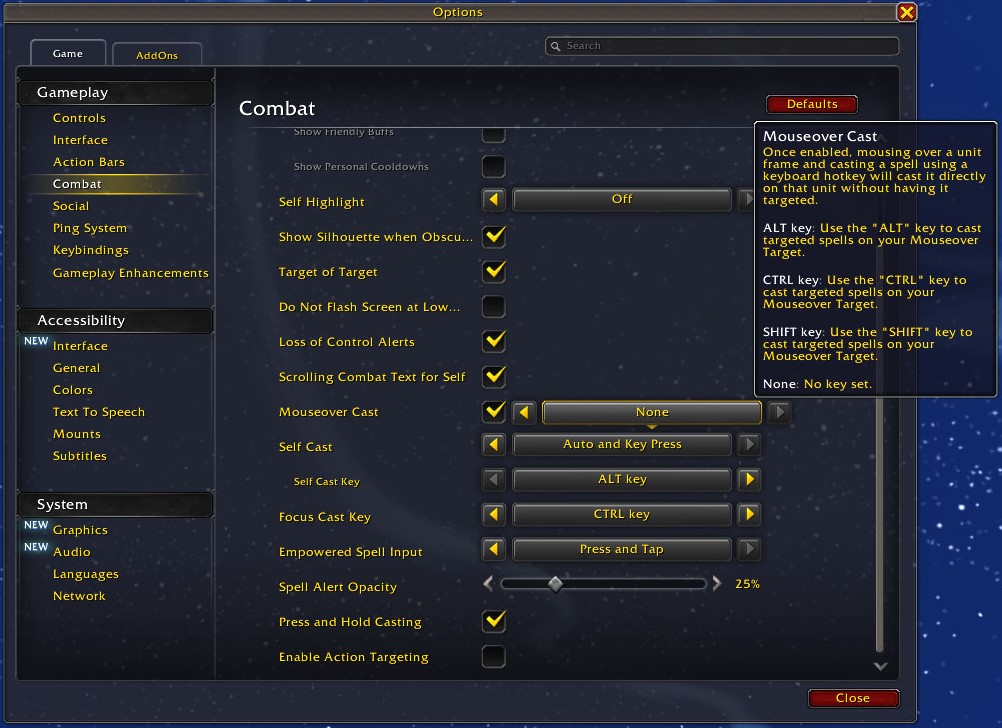
This configuration applies to regular spells on your action bar. Spells used on macros ignores this setting.
With mouseover active sometimes when you try to use spells with position behavior (like Death and decay of Death knight) the spell will cast immediately to your current mouse position (like macro @cursor behavior) specially if you press the spell multiple times or if your cursor is hovering a target.
To avoid unexpected cast for spell position behavior to due General Target from mouseover config use this macro (save on specific macros of character) for EVERY spell with position behavior
#showtooltip
/stopspelltarget
/cast [mod:alt, @player] [mod:shift, @cursor] [] SPELL_NAME
Also with this macro you can use the modifier alt to cast spell over your character position, use shift for cursor position or nothing for the normal behavior (position preview)
Macro
To setup mouseover how target via macro use the special var @mouseover, for example
/cast [@mouseover] SPELL_NAME
Where SPELL_NAME is the spell to cast on your mouseover target (only if is npc or player objects are not a valid target), if the spell is position behavior (like Death and decay of Death knight) use the special var @cursor.
/cast [@cursor] SPELL_NAME
Where SPELL_NAME is the spell to cast on your mouse position, this case is like instead to “show” a preview of spell are effect, this one will cast immediately (also save a little bit seconds avoiding additional clicks)
More info about macros check here TODO
Loss of control alerts
Loss of control refers to negative effects you should be aware of, such as Root, Stun, and Silence. When the option is enabled, once you have at least one debug that apply any of relevant loss of control effects you will see the icon, remaining duration, and the text about the effect type displayed in the center of the screen. If multiple effects are active, only the most recently applied will be shown until it ends or is removed (dispel).
IMAGE HERE
Turn speed with keyboard
Your character can “turn” using keybinding A and D or arrow left and right (by default) that speed can be modified via Cvar, to modify run the next command
/console turnspeed 200
the default value is 200, To check run
/dump GetCVar("Turnspeed")
I use 220, use the value that fits better for your game style, usually for melee higher value are better.
Action Bars, Keybindings
The Keybinding configuration that i use is based to move using the keys W, A, S, D, Q, E, and use the many keybinding in the keyboard following like region buttons based on hand position:
- Left hand: Buttons like 1, 2, 3, 4, 5, 6, R, T, Y, F, G, H, B, N are intended to be used with left hand on action bars
- Right hand: Mostly use the mouse but also the keybind near to mouse with right hand are, Num pad buttons like -, +, Supr, num pad 3, num pad 6, num pad 3, num pad 0 and/or just use additional buttons from mouse if have, in my case have 12 buttons mouse to have even MORE bindings.
As well this configuration are intended to be aligned the action bar with the keyboard keybinding (most possible without struggle too much), for example in my game style the action bars and the regions are something like this:

Mod bindings
Over Action bars
Keybindgins have special keys that are used only how “modifier”, these allow combination of keys become to a different keybinding, for example, Ctrl+Mouse Wheel up, Shift+P or even multiple modifiers like Ctrl+Shift+Mouse Wheel Up its another keybinding different to Ctrl+Mouse Wheel Up.
Another use for mod bindings its about the keybinding used for spells are used to “dynamically” spell target, for example, If press any keybinding that contains an spell and you setup ALT for self cast in Options → Gameplay → Combat that will prioritize Self target for select target ignoring your current target (spells over macros are ignored), more info about target management check Spell Target Management
Macros
Mod bindings as well can be used in macro and ignore any “global” configuration, for example
Optimization
Recover disk space from old updates
Delete
C:\Program Files (x86)\World of Warcraft\Data\config C:\Program Files (x86)\World of Warcraft\Data\indices
These folder are updated to identify the updates and some patch do execute, the issue is that does not delete the old indice updates
References
https://eu.forums.blizzard.com/en/wow/t/toggle-macro-for-camera-water-collision/117963 https://warcraft.wiki.gg/wiki/Console_variables#Resetting_CVars https://www.icy-veins.com/wow/news/clear-out-these-wow-folders-and-instantly-free-up-to-50-gb-of-space/ https://www.wowhead.com/news/new-user-interface-setting-to-reduce-camera-collision-in-the-war-within-342959